Integration of non-OA IP blocks into a Digital-on-Top design flow
Many foundry IP blocks, namely SRAM and register file macros, do not come with an Cadence OpenAccess library out of the box. In order to integrate them into the CERN ASIC Support Digital-on-Top implementation flow, there are a few steps to be taken, in particular:
- Create an OA library
- Add the relevant files in the flow configuration
Creating an OA library
These IPs come with GDS, LEF, Verilog and SPICE files. The goal is to import those files into a layout, abstract and symbol views. Follow these steps to do that.
About importing SPICE netlists
While it would be in theory possible to also import the SPICE netlist into a schematic view, it is strongly discourage to do so with foundry IPs and standard cells. TSMC uses parameters (width and length) for their macros that are often smaller than the minimum required for analog designs. During the import of the SPICE models, Virtuoso will automatically force these values to the minimum allowed, hence all the devices will have wrong parameters. All common EDA tools can understand the SPICE format directly anyway, so this should not pose a problem.
Moreover, trying to import the SPICE netlist of IPs such as SRAM macros will most likely fail because the device of the memory bitcell would not be available in the analog library, as it's a highly protected foundry IP, so the netlister would fail during device mapping.
Create a blank OA library
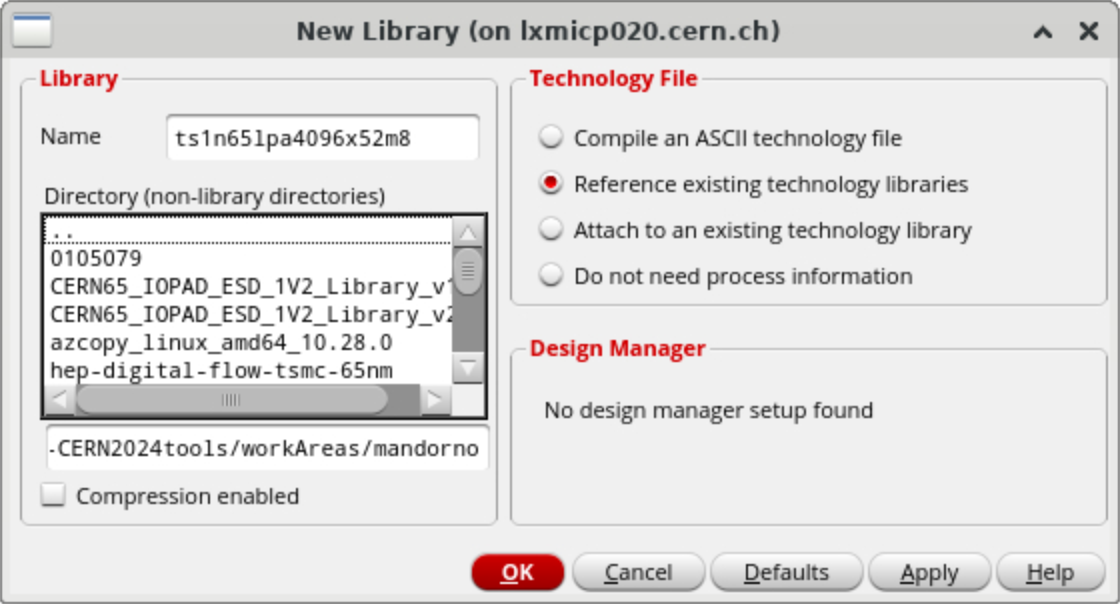
- Open Virtuoso and from the CIW or the Library manager select File > New > Library.
- Specify the name of the library (e.g. the name of you IP) and select Reference existing technology library.
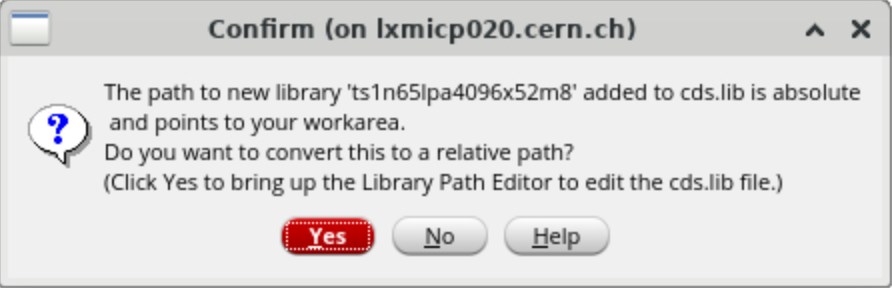
- If this window pops up, choose whether to keep the full path in the
cds.libfile or convert it to a relative path. You can do that also at any moment later.
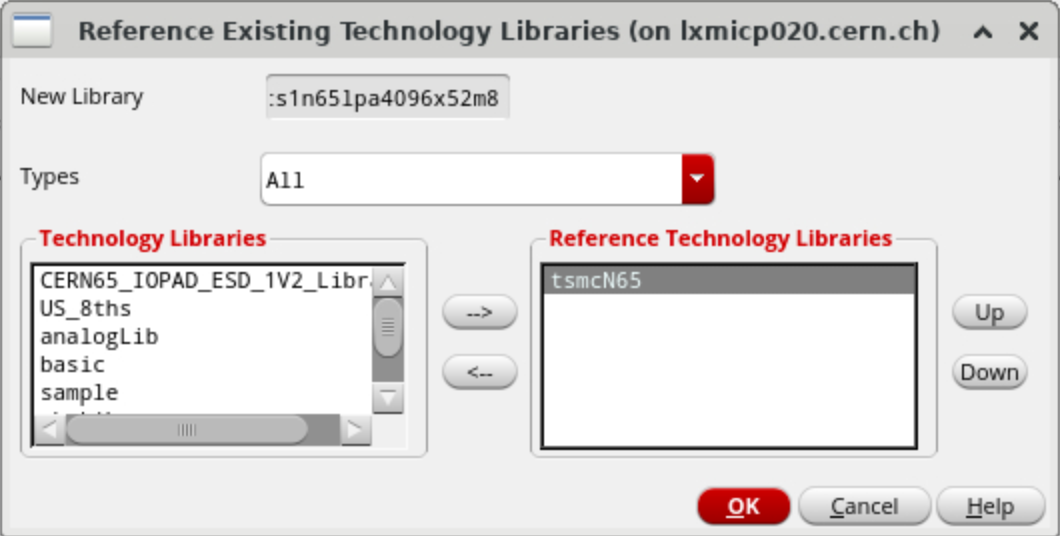
- Select the base technology library of the PDK as the library to reference. Make sure to add it to the list on the right by clicking the corresponding arrow.
Import the GDS
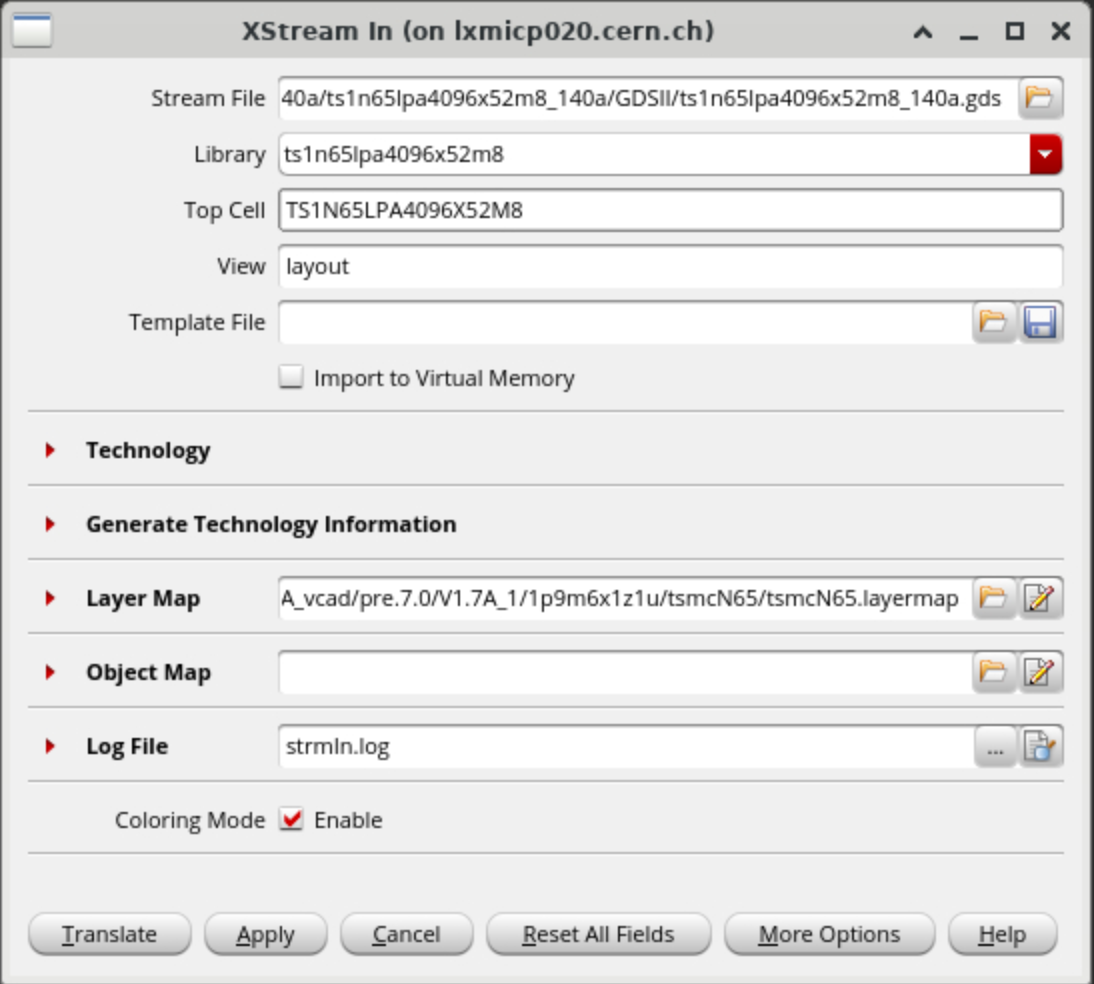
- From the Virtuoso CIW, select File > Import > Stream.
- Choose the GDS file of your IP, specify the name of the library you just created and the name of the top cell in the design.
- Make sure the layer map file is correctly selected in the corresponding box.
- Click Translate.
- You library will now contain all the cells in the GDS with a
layoutview.
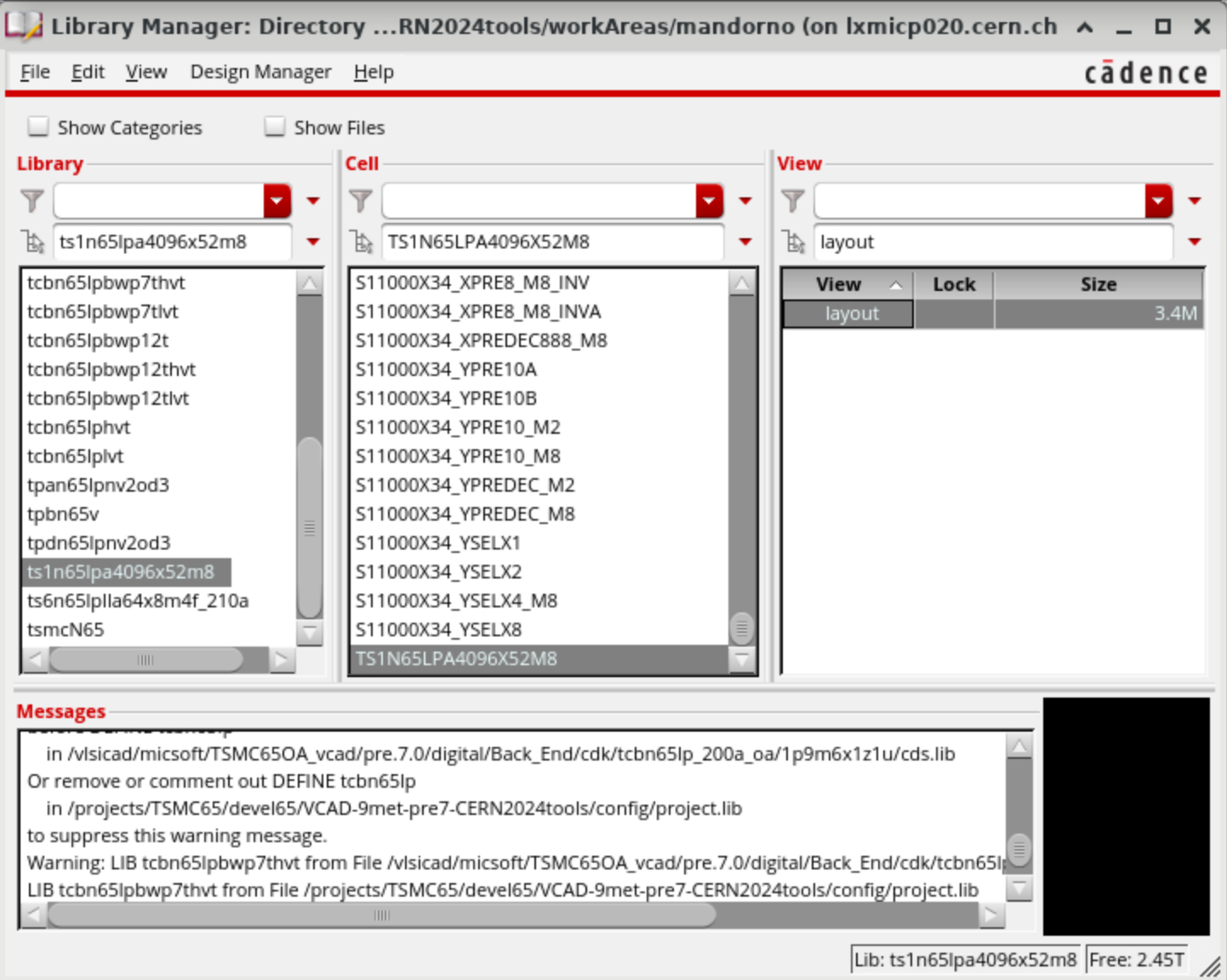
Import the LEF
- From the Virtuoso CIW, select File > Import > LEF.
- Choose the LEF file of your IP, specify the name of the library.
- Click OK.
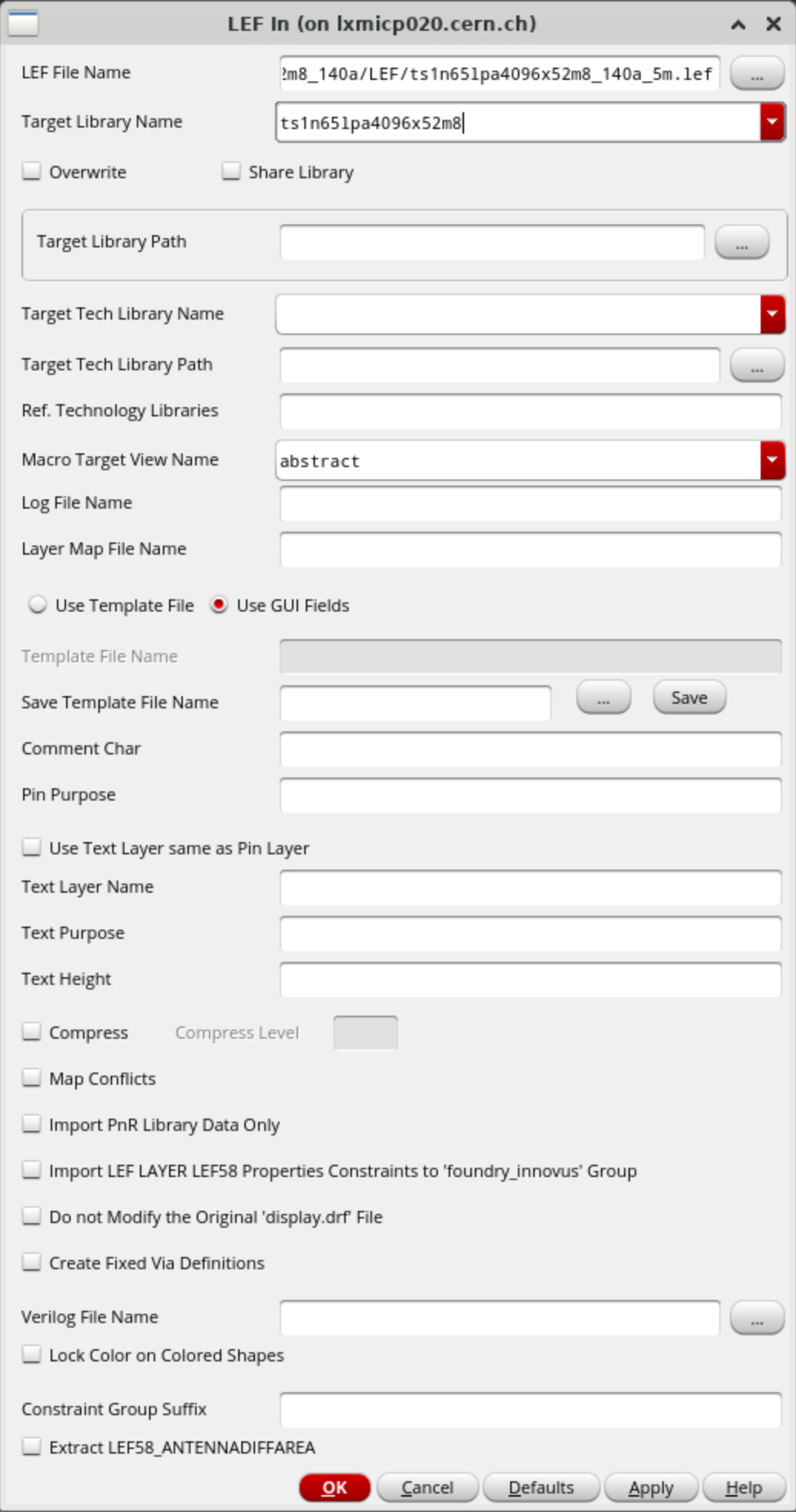
- You library will now contain an
abstractview for the top cell.
Import antenna information
Sometimes an IP provides pin antenna information in a separate LEF file (e.g. a .alef file). In such a case repeat the procedure above with that file. The LEF importer will include the additional information on top of the existing abstract.
If you want to make sure the antenna information has been imported correctly, you can use the following SKILL procedure:
procedure(CCSGetAntennaValues(lib cell @optional (view "abstract"))
    let((cv termList IOTermList AntennaParamList)
        cv=dbOpenCellViewByType(lib cell view "maskLayout" "r")
        termList=cv~>terminals
        IOTermList=setof(x termList or(x~>direction=="input" x~>direction=="output"))
        AntennaParamList=list("ANTENNAGATEAREA" "ANTENNADIFFAREA"
                            "ANTENNAPARTIALMETALAREA" "ANTENNAPARTIALMETALSIDEAREA"
                            "ANTENNAPARTIALCUTAREA" "ANTENNAMAXAREACAR"
                            "ANTENNAMAXSIDEAREACAR" "ANTENNAMAXCUTCAR")
        foreach(x IOTermList
            printf("************** Terminal:%L ***********\n" x~>name)
            foreach(param AntennaParamList
                printf("Terminal:%L Param:%L Value:%L\n"
                    x~>name param
                    dbGetTerminalAntennaRules(x "defaultAntennaModel" param))
            )
        )
    )
)
Usage:
CCSGetAntennaValues("myLib" "myCell" "abstract")
You will see an output like:
************** Terminal:"TSEL1" ***********
Terminal:"TSEL1" Param:"ANTENNAGATEAREA" Value:(0.0301)
Terminal:"TSEL1" Param:"ANTENNADIFFAREA" Value:(0.1066)
Import the Verilog model
Create a symbol view
- From the Virtuoso CIW, select File > Import > Verilog.
- Choose the Verilog file of your IP (whatever corner is fine), specify the name of the library.
- Specify
symbolas the Symbol View Name under Import Modules as menu. - Click OK.
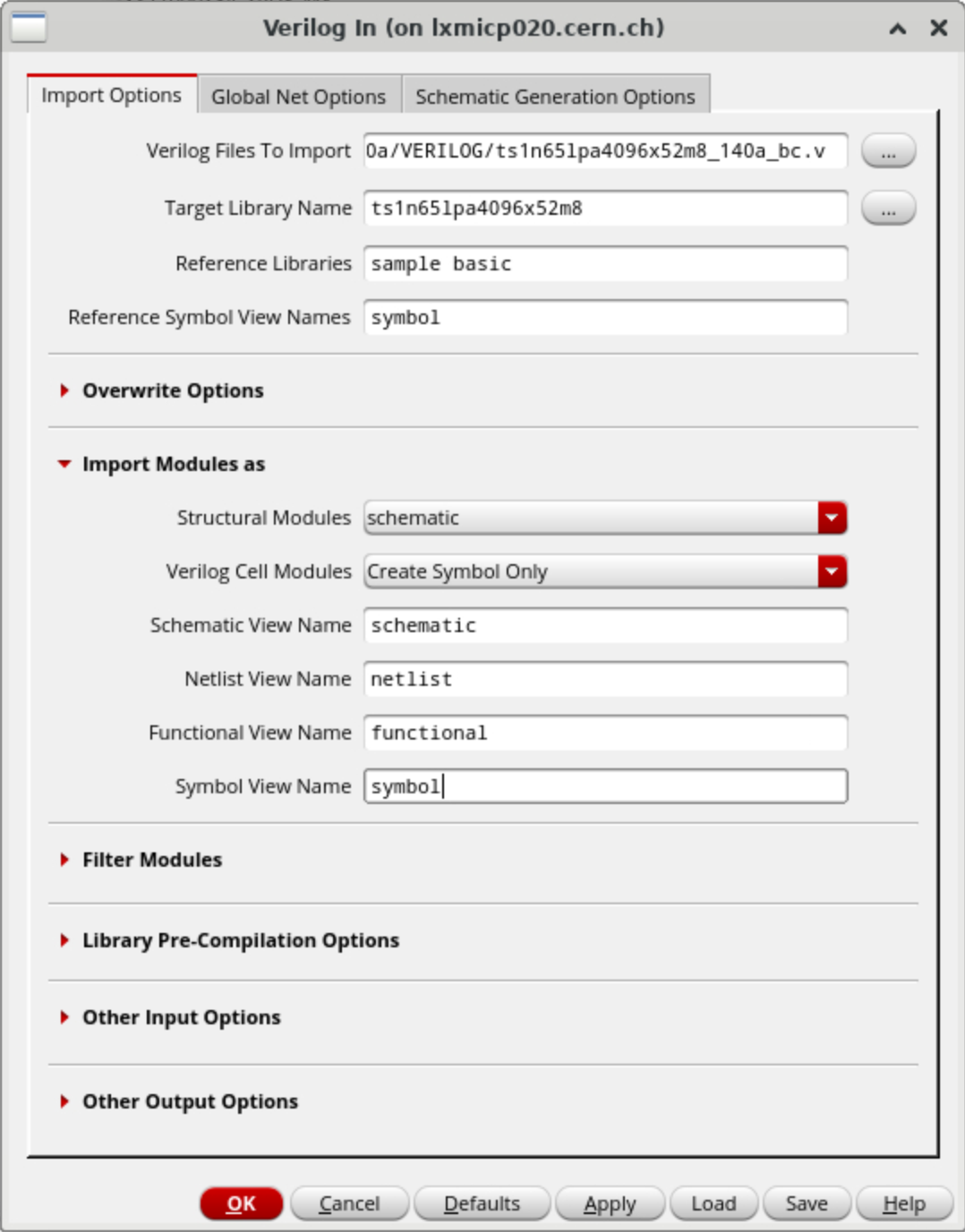
- You library will now contain an
symbolview for the top cell.
Symbol view
The symbol view is used in the Digital-on-Top flow when creating a OA schematic of the full design starting from the post-layout Verilog netlist, using the ihdl tool (see related flow step). The parameter file ihdl_param.il contains a line like:
...
schematic_view_name := schematic
symbol_view_name := symbol
...
symbol view to draw the schematic.
Create a auCdl view
- Repeat the same process as above, but call the view
auCdlthis time. Alternatively, you can also copy thesymbolview into aauCdlview.
auCdl view
In the context of the Digital-on-Top flow, the auCdl view is used at LVS stage, when generating the CDL netlist from the OA schematic with the si tool (see related flow step). Its configuration file si.env contains the following lines:
...
simStopList = '("auCdl")
simViewList = '("auCdl" "schematic")
auCdlDefNetlistProc = "ansCdlSubcktCall"
...
simSimulator = "auCdl"
simViewName = "schematic"
cdlSimViewList = '("auCdl" "schematic")
cdlSimStopList = '("auCdl")
auCdl view first or then a schematic view (as defined in simViewList). When it finds a cell with a auCdl view (e.g. standard cells or foundry IPs), it will stop (see simStopList) and call auCdlDefNetlistProc, which in this case just emits a line instantiating the corresponding .SUBCKT, with terminal names in the order defined in the auCdl.
If a auCdl view was not present, the netlister would expect a schematic view and it would fail in the case of standard cells or foundry IPs not having one.
Note for LVS
For LVS to work correctly though, the original SPICE file of the IP should be eventually included so that LVS can resolve the reference to the .SUBCKT instantiation. The digital flow does that with the
incFILE =
si.env (see below).
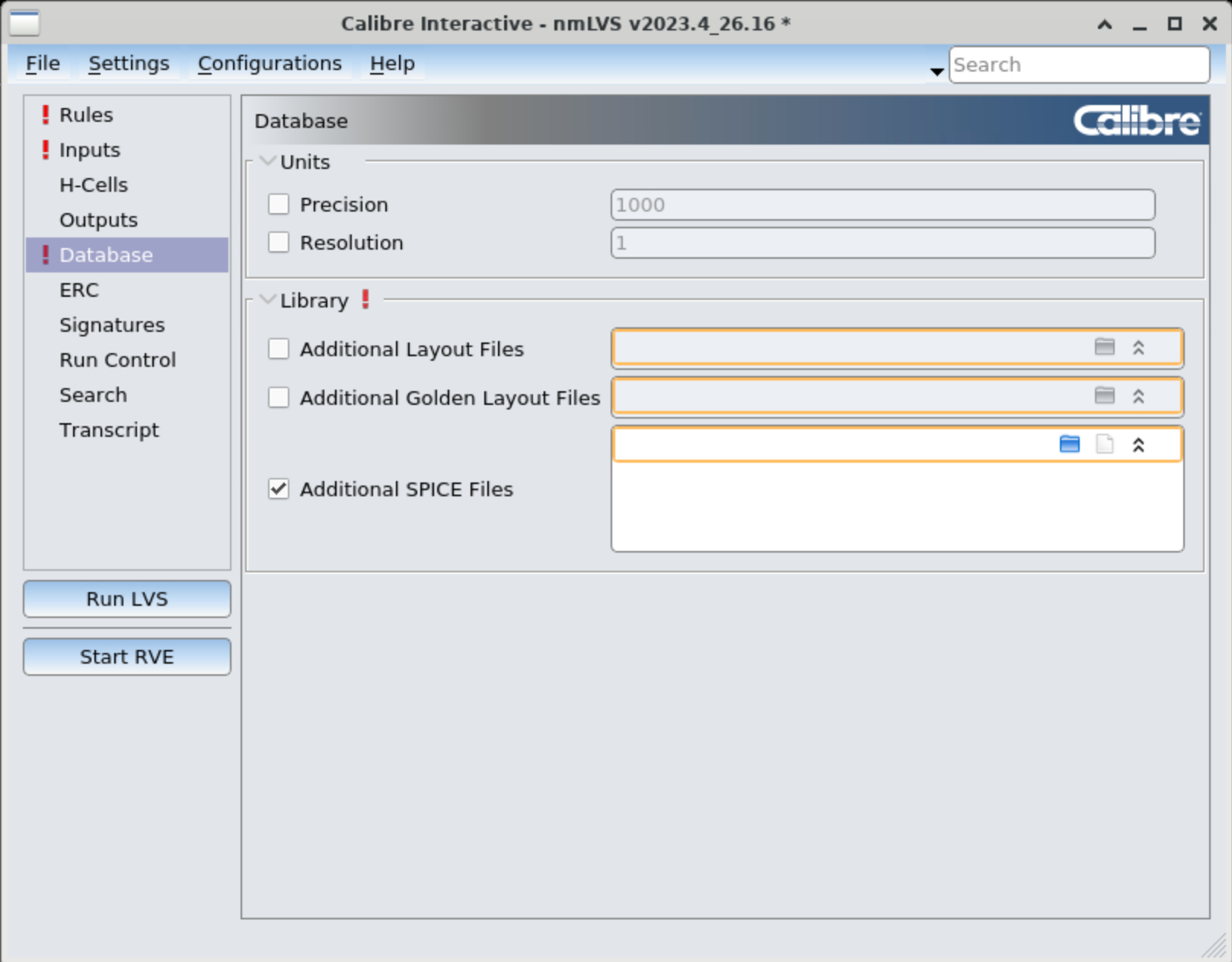
Alternatively, it can be done by listing the SPICE files in the Calibre LVS GUI under Additional SPICE files in the Database page:
Using the IP in the flow
After the OA library has been created, it can be used in the OA-based Digital-on-Top implementation flow. To do that, the library needs to be loaded as a physical library and the timing information needs to be added to the MMMC configuration. Also, the SPICE files of the IP need to be provided to the signoff flow steps in order to run LVS.
Load the IP physical information
The physical information for the digital implementation flow is taken from the abstract view in the OA library that was just created.
-
From the flow root directory, open
config/cds.liband add your new OA library definition:This is the### Include base cds.lib INCLUDE $PDK_PATH/$PDK_RELEASE/pdk/$PDK_OPTION/cdsPDK_MSOA/cds.lib INCLUDE $PDK_PATH/$PDK_RELEASE/TSMCHOME/digital/Back_End/cdk/cds.lib.$PDK_OPTION ### Include additional cds.lib for separate macro blocks, analog IP, etc. DEFINE myIP /path/to/the/oa/lib <------ ADD THIS LINE ### Flowtool will add the design library belowcds.libfile that the flow will copy to the work directory and needs to contain definitions for all the libraries used. -
Open
config/setup.yamland add the IP library to theoa_ref_libsalong with standard cell libraries:This list will be read by the# A YAML list of lef files or oa libraries read in by 'read_physical' command. init_physical_files: oa_ref_libs: - tcbn28hpcplusbwp35p140 - myIP <------ ADD THIS LINE # lef_files: # oa_search_libs:read_physicalcommand duringinit_design. The tool will load theabstractview for the IP.
Load the IP timing information
Timing information for STA is taken from the Liberty files provided with the IP. These are not related to the OA library and need to be loaded separately into the MMMC (Multi-Mode Multi-Corner) configuration file.
- Open
config/setup_mmmc.yamland add the Liberty files of the IP to thelibrary_setsfor all corners as shown below:library_sets: # Library sets for core at 0.9V, setup analysis libs_tt_25c_setup: library_files: '[p_get_lib 0p9v tt_25c] /path/to/myIP_tt_25c.lib' <------ ADD THIS aocv_files: '[p_get_aocv setup 0p9v tt_25c]' libs_ssg_m40c_setup: library_files: '[p_get_lib 0p9v ssg_m40c] /path/to/myIP_ssg_m40c.lib' <------ ADD THIS aocv_files: '[p_get_aocv setup 0p9v ssg_m40c]' libs_ssg_125c_setup: library_files: '[p_get_lib 0p9v ssg_125c] /path/to/myIP_ssg_125c.lib' <------ ADD THIS aocv_files: '[p_get_aocv setup 0p9v ssg_125c]' libs_ffg_m40c_setup: library_files: '[p_get_lib 0p9v ffg_m40c] /path/to/myIP_ffg_m40c.lib' <------ ADD THIS aocv_files: '[p_get_aocv setup 0p9v ffg_m40c]' libs_ffg_125c_setup: library_files: '[p_get_lib 0p9v ffg_125c] /path/to/myIP_ffg_125c.lib' <------ ADD THIS aocv_files: '[p_get_aocv setup 0p9v ffg_125c]' libs_ffg_0c_setup: library_files: '[p_get_lib 0p9v ffg_0c] /path/to/myIP_ffg_0c.lib' <------ ADD THIS aocv_files: '[p_get_aocv setup 0p9v ffg_0c]' # Library sets for core at 0.9V, hold analysis libs_tt_25c_hold: library_files: '[p_get_lib 0p9v tt_25c] /path/to/myIP_tt_25c.lib' <------ ADD THIS aocv_files: '[p_get_aocv hold 0p9v tt_25c]' libs_ssg_m40c_hold: library_files: '[p_get_lib 0p9v ssg_m40c] /path/to/myIP_ssg_m40c.lib' <------ ADD THIS aocv_files: '[p_get_aocv hold 0p9v ssg_m40c]' libs_ssg_125c_hold: library_files: '[p_get_lib 0p9v ssg_125c] /path/to/myIP_ssg_125c.lib' <------ ADD THIS aocv_files: '[p_get_aocv hold 0p9v ssg_125c]' libs_ffg_m40c_hold: library_files: '[p_get_lib 0p9v ffg_m40c] /path/to/myIP_ffg_m40c.lib' <------ ADD THIS aocv_files: '[p_get_aocv hold 0p9v ffg_m40c]' libs_ffg_125c_hold: library_files: '[p_get_lib 0p9v ffg_125c] /path/to/myIP_ffg_125c.lib' <------ ADD THIS aocv_files: '[p_get_aocv hold 0p9v ffg_125c]' libs_ffg_0c_hold: library_files: '[p_get_lib 0p9v ffg_0c] /path/to/myIP_ffg_0c.lib' <------ ADD THIS aocv_files: '[p_get_aocv hold 0p9v ffg_0c]'
Load the SPICE files for LVS
As discussed above, if the IP doesn't have a schematic OA view, its SPICE files need to be passed to LVS for the tool to resolve those instances in the netlist. To do so, the si netlisting tool supports include files in its configuration.
- Open
flow-scripts/cern_scripts/signoff_checks_steps.tclat therun_calibre_lvsstep and add a line with the IP spice file in theincFILE =configuration:# Run SI to convert schematic view to SPICE netlist cat $signoff_config/virtuoso.si.env > si.env set fp [open si.env "a"] puts $fp "hnlNetlistFileName = \"$source\"" puts $fp "simCellName = \"[get_flow_config -quiet design_name]\"" puts $fp "simLibName = \"[p_get_design_name_with_tag]\"" puts $fp "simRunDir = \"$lvs_dir\"" puts $fp "incFILE = \"[get_flow_config pdk_root]/Calibre/lvs/source.added " -nonewline if {[get_flow_config calibre_lvs_use_spice]} { foreach lib [p_remove_non_stdcells [get_flow_config init_physical_files oa_ref_libs]] { puts -nonewline $fp "[get_flow_config libraries_root]/[get_flow_config -quiet library_info $lib spi] " } puts -nonewline $fp "/path/to/myIP.spi" <------ ADD THIS LINE } puts $fp "\"" close $fp